Balsamiq MCP server
On this page
The Balsamiq MCP server connects your Balsamiq projects to AI tools like Claude, ChatGPT, Cursor, or VS Code.
Your AI client can read and analyze your existing designs, and also create new boards and edit existing ones — all from a plain-language prompt in your AI tool, without switching to Balsamiq.
Requirements:
- An active Balsamiq Cloud subscription (any plan)
- An MCP-compatible AI client (such as Claude, ChatGPT, Cursor or VS Code)
Note: MCP (Model Context Protocol) is an open standard for connecting AI tools to external services.
Setting it up
The Balsamiq MCP server is hosted remotely — no local installation required.
Server URL:
https://bais.balsamiq.com/mcp
- Find the MCP or custom connector settings in your AI client.
- Add a new server using the URL above.
- When prompted, sign in to your Balsamiq account and authorize access to your projects.
- You're connected. Your AI client can now read your Balsamiq designs directly.
Choose your AI client below to find specific setup instructions:
| Client | Setup guide |
|---|---|
| Claude (claude.ai) | Get started with custom connectors using remote MCP |
| Claude Code | Connect Claude Code to tools via MCP |
| VS Code | Add and manage MCP servers in VS Code |
| Codex | Model Context Protocol in Codex |
| Gemini CLI | MCP server integration in Gemini CLI |
| GitHub Copilot CLI | Adding MCP servers for GitHub Copilot CLI |
For clients not listed above, enter the server URL (https://bais.balsamiq.com/mcp) as a custom MCP server or connector in your client's settings.
The Balsamiq MCP server uses OAuth 2.1 for secure authorization. You can revoke access at any time from the Connected apps tab in your Balsamiq user settings.
What you can do
Create wireframes
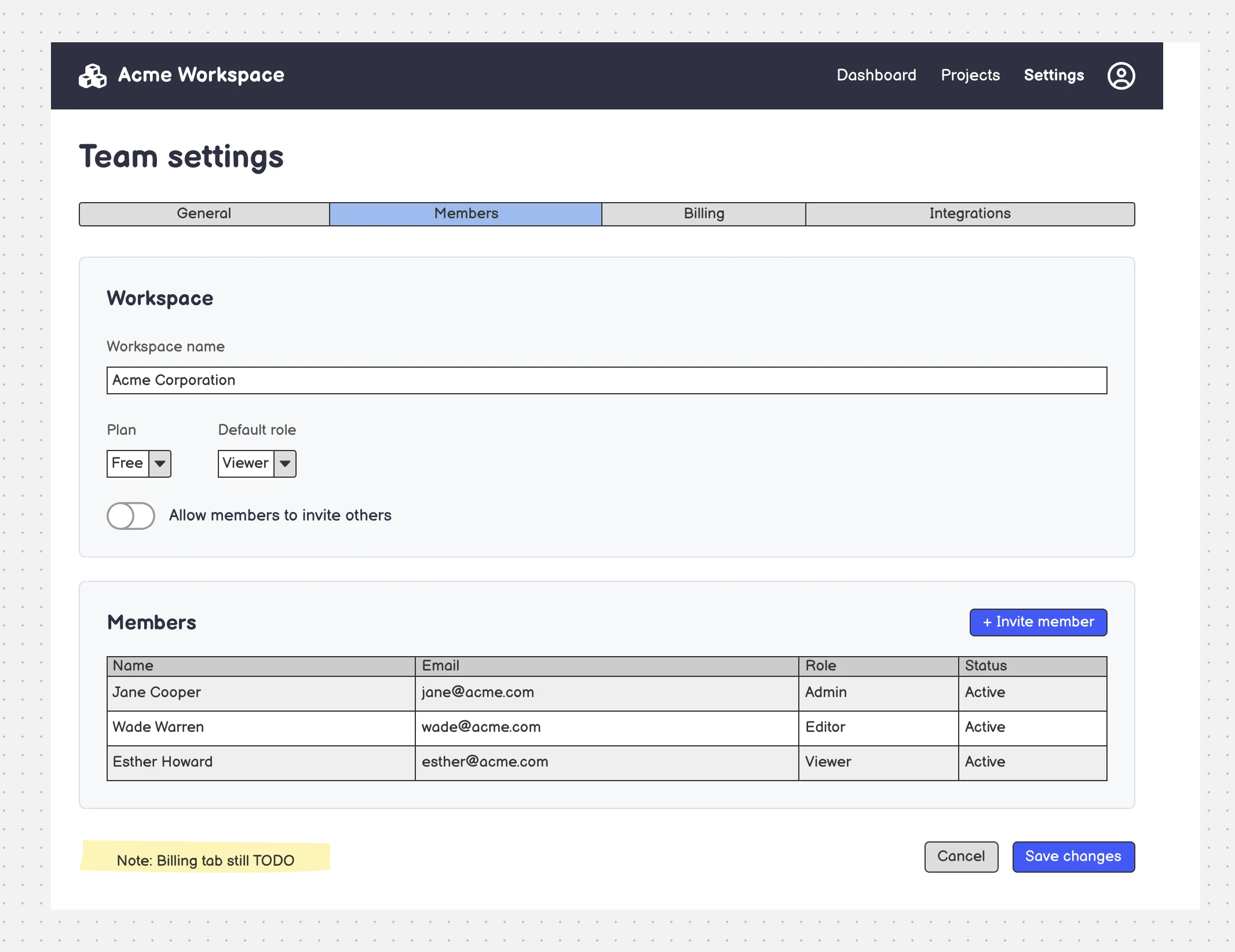
Describe what you want in plain language and the AI builds it directly in your Balsamiq project. In web-based chat clients like Claude Desktop, the wireframe is rendered right in the conversation so you can see the result without leaving the chat.
Generate a screen from a prompt
Describe the layout and the AI builds it in Balsamiq.
Create a team settings page. A dark top bar with the workspace name and nav links. A tab bar with General, Members, Billing, Integrations. A "Workspace" card with a workspace-name field, Plan and Default role dropdowns, and an "Allow members to invite others" toggle. A "Members" card with an "Invite member" button and a table of members (Name, Email, Role, Status). Cancel and Save changes buttons at the bottom. Low-fidelity Balsamiq style.
Recreate a screenshot as a wireframe
Attach a screenshot and the AI rebuilds it as a clean low-fidelity wireframe.
Create a new board named "Login screen" and build a wireframe that mirrors the screenshot I've attached.
Explore variations of a design
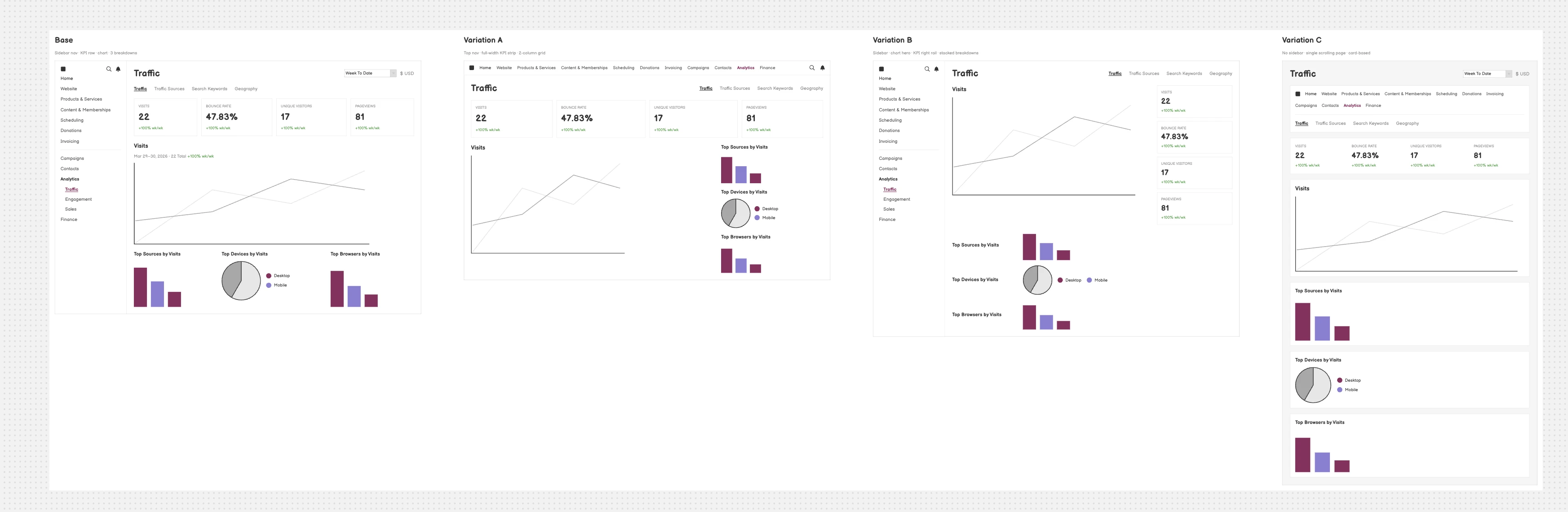
Generate multiple layouts of the same screen side by side to compare directions.
Create a new board named "Dashboard variations". Recreate the attached dashboard screenshot as a low-fidelity wireframe and label it "Base". Then, to the right, create three variations labeled A, B, and C with the same content but distinctly different layouts. Keep the color treatment consistent across all four and don't overlap them.
Continue a flow
From one existing screen, ask for the next step in a user flow, matching the existing style.
On the board named "Dashboard variations", add a second screen to the right of the existing one (don't change the original). Make it the next step of the same wizard: step 2, "Users". Match the header, sidebar, and breadcrumb.
Show every state of a screen
Generate all the states of a screen at once — including error states, empty states, and loading indicators that are easy to forget.
Make wireframes of every state of the Download dialog.
Build a system or architecture diagram
The MCP isn't limited to UI screens. Ask for a flow diagram, architecture overview, or any other diagram.
Create a board that shows the architecture of this system as a flow diagram, with boxes and arrows for each layer.
Build a board from the codebase
Point the AI at your code and ask it to represent how something is actually implemented.
Create a board that represents how this specific feature is implemented in the UI.
Read and analyze your designs
Once connected, things that used to be manual — QA plans, user stories, edge case analysis — can be handled by your AI client because it actually has access to your designs.
For each prompt below, paste your Balsamiq Cloud board or project URL directly into the text. Your AI client will use it to fetch the right content automatically.
Hand off to your AI coding tool
Turn a wireframe into a working HTML prototype or a starting point for code without starting from scratch.
Build a working HTML prototype from this board: [your board URL]
Analyze a user flow
Map the end-to-end journey across your boards and surface missing transitions, dead ends, or undesigned screens.
Walk me through the user flow in this project and tell me if anything is missing: [your project URL]
Identify missing states and edge cases
Spot empty states, error conditions, loading indicators, and other gaps that are easy to overlook during wireframing.
What states and edge cases are missing from this board? [your board URL]
Generate user stories
Turn your boards into a structured backlog, ready to drop into Jira, Linear, or wherever your team tracks work.
Generate user stories from the boards in this project: [your project URL]
Generate a QA test plan
Produce a test plan from your wireframe before a single line of code is written.
Generate a QA test plan for this board: [your board URL]
Check against your PRD
Verify your designs cover everything in the spec and flag what's missing.
Here's our PRD: [paste PRD text]. Does this board cover everything in it? What's missing? [your board URL]
Review copy and microcopy
Check labels, button text, and error messages for clarity, consistency, and tone.
Review the copy and microcopy in this board: [your board URL]
Available tools
These are the tools your AI client uses to access your designs. You don't call them directly — your AI client uses them automatically based on what you ask.
| Tool | Description |
|---|---|
list_balsamiq_projects |
Lists all Balsamiq projects you have access to, including the space each belongs to |
get_balsamiq_project_toc |
Returns the name and list of boards for a specific project, including each board's URL |
get_balsamiq_board_content |
Returns the full UI control hierarchy of a board, including control types, positions, sizes, and nesting. Sticky notes and arrows are included and carry context about design intent and user flows |
get_balsamiq_board_preview |
Generates a visual screenshot of a specific board |
get_balsamiq_board_comments |
Returns all comments on a specific board, organized as threaded conversations |
create_balsamiq_board |
Creates a new board in a Balsamiq project from an AI-generated layout description |
edit_balsamiq_board |
Makes targeted edits to an existing board — adding, changing, or removing UI elements — without affecting the rest of the board |
Note: Large boards are returned in pages. If you suspect content is missing, ask your AI client to "fetch all pages of the board" before analyzing it.
Security and data access
Scope: The MCP server has access to the spaces and projects in your Balsamiq account. It can read board content and create or edit boards, but it cannot access billing information or account settings.
Authentication: Secured with OAuth 2.1 and session tokens. You can revoke access at any time from your Balsamiq account settings.
Data retention: The server does not store board content beyond the duration of a single request.
Troubleshooting steps
Can't connect or getting an authentication error
- Check that the server URL is entered correctly:
https://bais.balsamiq.com/mcp. - Make sure you've completed the OAuth sign-in through your client's connector settings. If you're seeing an auth error, your session may have expired — disconnect the server, reconnect it, and sign in again.
- Also confirm that your client supports remote MCP servers, as some only support locally-run servers.
Connected but no tools available
- Restart your AI client after adding the server. Some clients only load MCP tools on startup.
- If the tools still don't appear, disconnect the server, reconnect it, and sign in again.
Something else isn't working
Feel free to reach out to support@balsamiq.com and include your AI client name and a description of the issue.